












 Apple
Apple Anker
Anker HONOR
HONOR Xiaomi
 Samsung
 Huawei



Introduction
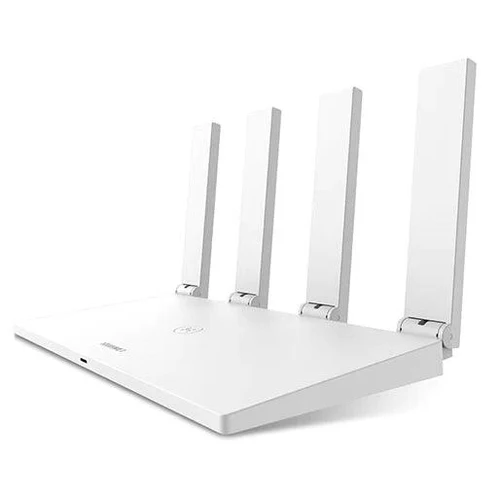
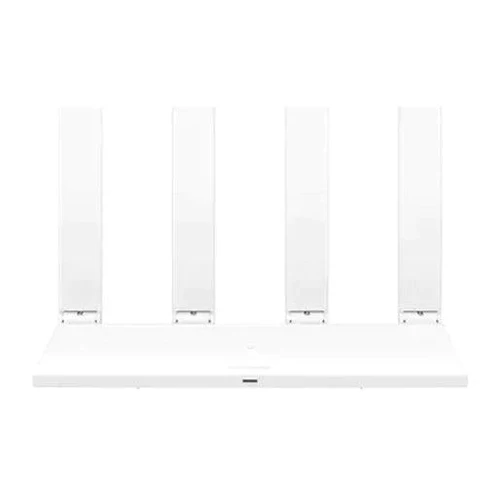
This manual provides comprehensive instructions for setting up, operating, and maintaining your HUAWEI WS5200 V3 Wireless Wifi Router. This high-performance router features dual-band 2.4GHz and 5GHz Wi-Fi, full Gigabit Ethernet ports, and a powerful dual-core 800MHz CPU for a stable and fast internet experience.
Setup Guide
1. Package Contents
Ensure all items are present in your package:
- HUAWEI WS5200 V3 Wireless Router
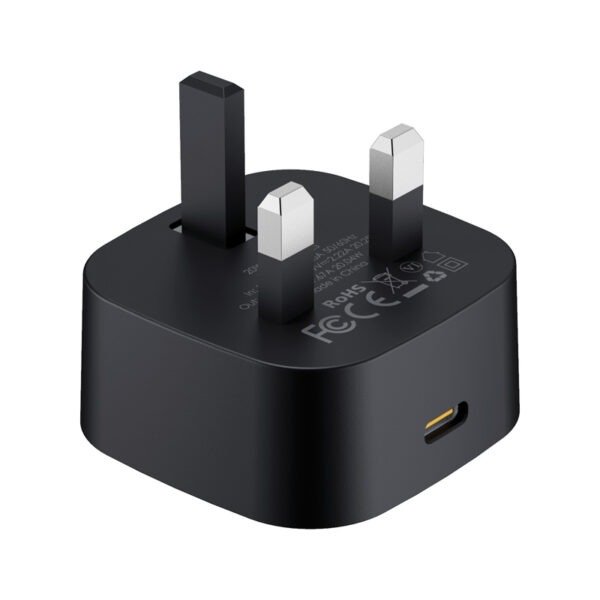
- محول الطاقة
- Ethernet Cable
- Quick Start Guide (if included)
 Image: Router with various power adapter options (Standard, US, EU, UK, AU).
2. Physical Connection
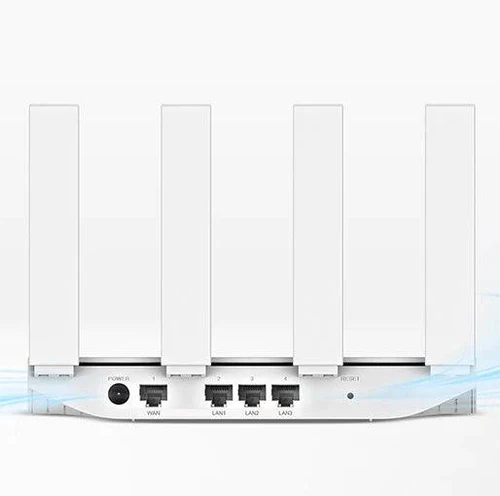
The HUAWEI WS5200 V3 features full Gigabit ports, eliminating the need to distinguish between LAN and WAN ports. You can connect your internet cable to any port.
 Image: Rear view of the router with power input, WAN port (blue), and three LAN ports (black).
- Connect the power adapter to the router’s power input and plug it into a power outlet.
- Connect the internet cable from your modem or wall outlet to any of the router’s network ports (WAN/LAN). The router will automatically detect the connection type.
- The indicator light on the router should turn red initially, then green once connected to the internet.
3. Initial Configuration (via Smartphone)
You can easily set up your router using your smartphone’s web browser:
- Connect your smartphone to the router’s default Wi-Fi network. The Wi-Fi name (SSID) can be found on the bottom of the router. No password is required for the initial connection.
- Open your smartphone’s web browser. The router’s configuration page should automatically appear. If not, manually enter
192.168.3.1in the address bar. - Follow the on-screen prompts:
- Input your PPPoE account details (username and password provided by your internet service provider). Skip this step if your connection uses DHCP mode.
- Set your new Wi-Fi name (SSID) and a strong password. You can also choose to set the Wi-Fi password as the router’s management password for convenience.
- Once configured, the router’s indicator light will turn solid green, indicating a successful internet connection.
 Image: Visual guide for smartphone-based router setup, including connecting to Wi-Fi, entering PPPoE details, and setting Wi-Fi name/password.
Operating the Router
Dual-Band Wi-Fi (2.4GHz & 5GHz)
The HUAWEI WS5200 V3 combines 2.4 GHz and 5 GHz signals into a single Wi-Fi name. It intelligently connects your devices to the faster frequency (5GHz) based on their location and signal strength, ensuring optimal performance for all connected devices. This provides a better Wi-Fi experience with reduced interruptions for video calls and smoother gaming.
 Image: Illustration of 2.4GHz and 5GHz Wi-Fi coverage, highlighting the preference for 5GHz for faster speeds.
Enhanced Signal Strength and Coverage
Equipped with four high-performance broadened antennas, the router is designed to minimize interference and provide strong, stable Wi-Fi signals. The LDPC (Low-Density Parity-Check) weak signal correction algorithm further enhances performance, allowing for faster speeds even through walls. The 5GHz Wi-Fi coverage is improved by 30% compared to previous generations, thanks to two powerful independent signal amplifiers.
 Image: Visual representation of Wi-Fi signal penetration through walls, emphasizing the router’s ability to maintain speed.
High-Speed Multi-User Connectivity
The wireless connection speed reaches up to 1167 Mbps (dual band), providing a superior Wi-Fi experience for multiple connected users simultaneously.
 Image: Depiction of multiple users enjoying high-speed internet connectivity with the router.
Full Gigabit Ethernet Ports
Unlike older Fast Ethernet (FE) routers, the HUAWEI WiFi WS5200 features full Gigabit Ethernet (GE) ports. This design perfectly meets the access requirements for 100+ Mbps broadband users, ensuring you get the full speed from your internet service provider.
 Image: The router with a focus on its full Gigabit Ethernet ports.
Powerful Dual-Core 800 MHz CPU
The router is powered by a dual-core 800 MHz CPU, offering more stable performance compared to routers with 40 nm chipsets. This powerful processor ensures efficient handling of multi-device access and multi-business processing, providing a smooth and reliable network.
 Image: Close-up of the router’s internal components, highlighting the dual-core 800 MHz CPU.
Maintenance
Automatic Network Optimization
The HUAWEI WiFi WS5200 is designed to continuously learn from its Wi-Fi environment. It automatically optimizes the Wi-Fi channel daily to improve overall Wi-Fi quality and performance, ensuring a consistent and reliable connection.
 Image: Router in a home environment, illustrating its ability to learn and optimize the network.
Optimal Placement
For best performance, place the router in an open, central location within your home or office, away from obstructions and other electronic devices that may cause interference.
Troubleshooting
The HUAWEI WS5200 V3 undergoes strict testing procedures to ensure a stable network. If you encounter issues, consider the following common solutions:
- No Internet Connection (Red Indicator Light):
- Check if the Ethernet cable from your modem/wall is securely connected to any port on the router.
- Verify that your internet service is active and your modem is working correctly.
- Re-enter your PPPoE account details if applicable, ensuring they are correct.
- Restart both your modem and router by unplugging them from power for 30 seconds, then plugging them back in.
- Slow Wi-Fi Speed:
- Ensure your device is connected to the 5GHz band if supported, as it offers faster speeds.
- Move closer to the router to improve signal strength.
- Check for interference from other electronic devices (microwaves, cordless phones).
- Restart the router.
- Cannot Connect to Wi-Fi:
- Verify you are entering the correct Wi-Fi password.
- Restart your device and try connecting again.
- If you recently changed the Wi-Fi name or password, ensure your device is updated with the new credentials.
 Image: Visuals indicating rigorous testing procedures for router stability, including long-time stability, flow pressure, CPU occupancy, power stability, harsh environment, flash reliability, and hardware reliability tests.
تحديد
| ميزة | Detail |
|---|---|
| العلامة التجارية | هواوي |
| نموذج | WS5200 V3 |
| يكتب | Wireless Router |
| Wired Transfer Rate | 10/100/1000Mbps (Full Gigabit) |
| Wi-Fi Supported Frequency | 2.4G & 5G (Dual Band) |
| Wi-Fi Transmission Standard | 802.11ac (AC1200) |
| LAN Ports | 3 |
| Supports WPS | نعم |
| وظيفة | Firewall, VPN |
| Application | الرئيسية |
| With Modem Function | لا |
| شهادة | سي إي |
| Origin | Mainland China |
ميزات الأمان
The HUAWEI WS5200 V3 incorporates several features to enhance your network security:
- Anti-brute force algorithm: Prevents unauthorized access to your network.
- Guest Wi-Fi: Protects your main Wi-Fi password from being leaked by providing a separate network for guests.
- WPA-PSK/WPA2-PSK Wi-Fi encryption: Ensures secure wireless communication.
- One-key to kick off strangers: Easily remove unwanted devices from your network.
 Image: Visual representation of security features including anti-brute force, guest Wi-Fi, WPA/WPA2 encryption, and one-key stranger removal.




المراجعات
Clear filtersلا توجد مراجعات بعد.